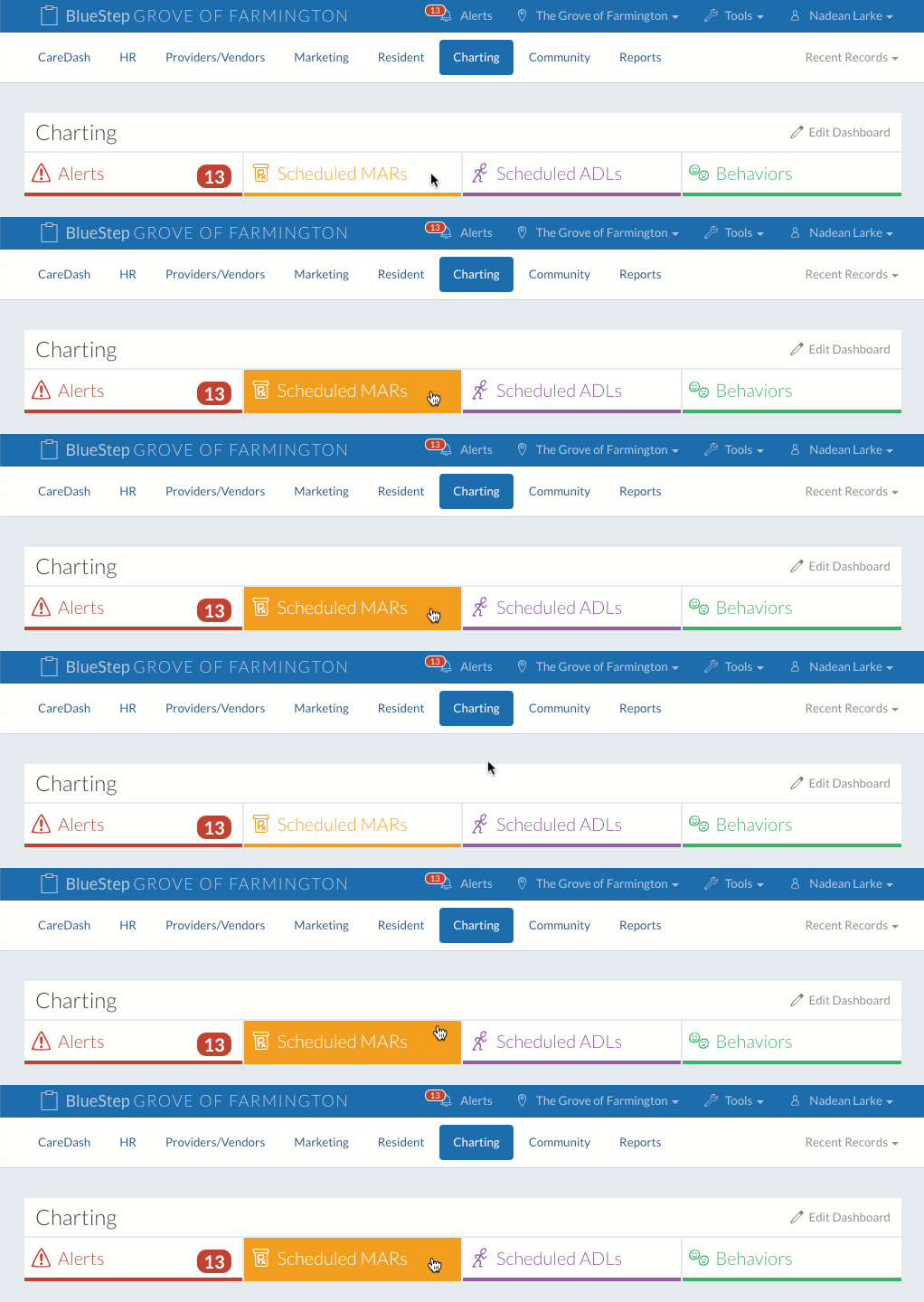
In This Help Topic05C. Scheduled MARsHow to navigate and document on QVR's MAR. Set the Charting Site as the Home Page
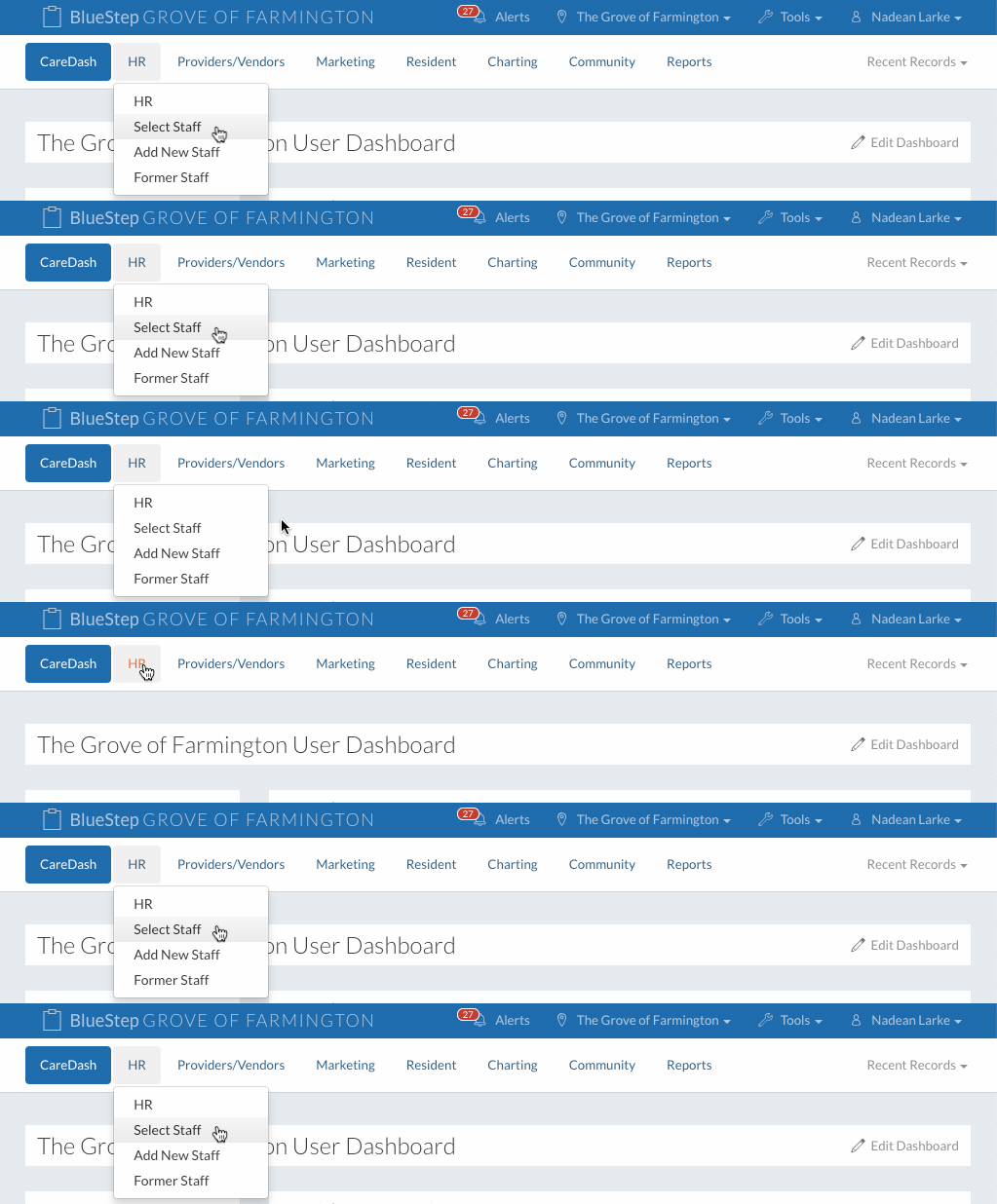
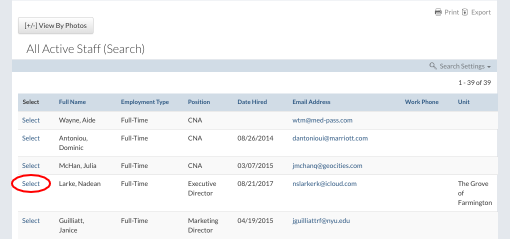
The Charting Site can be set as the home page for any staff member.
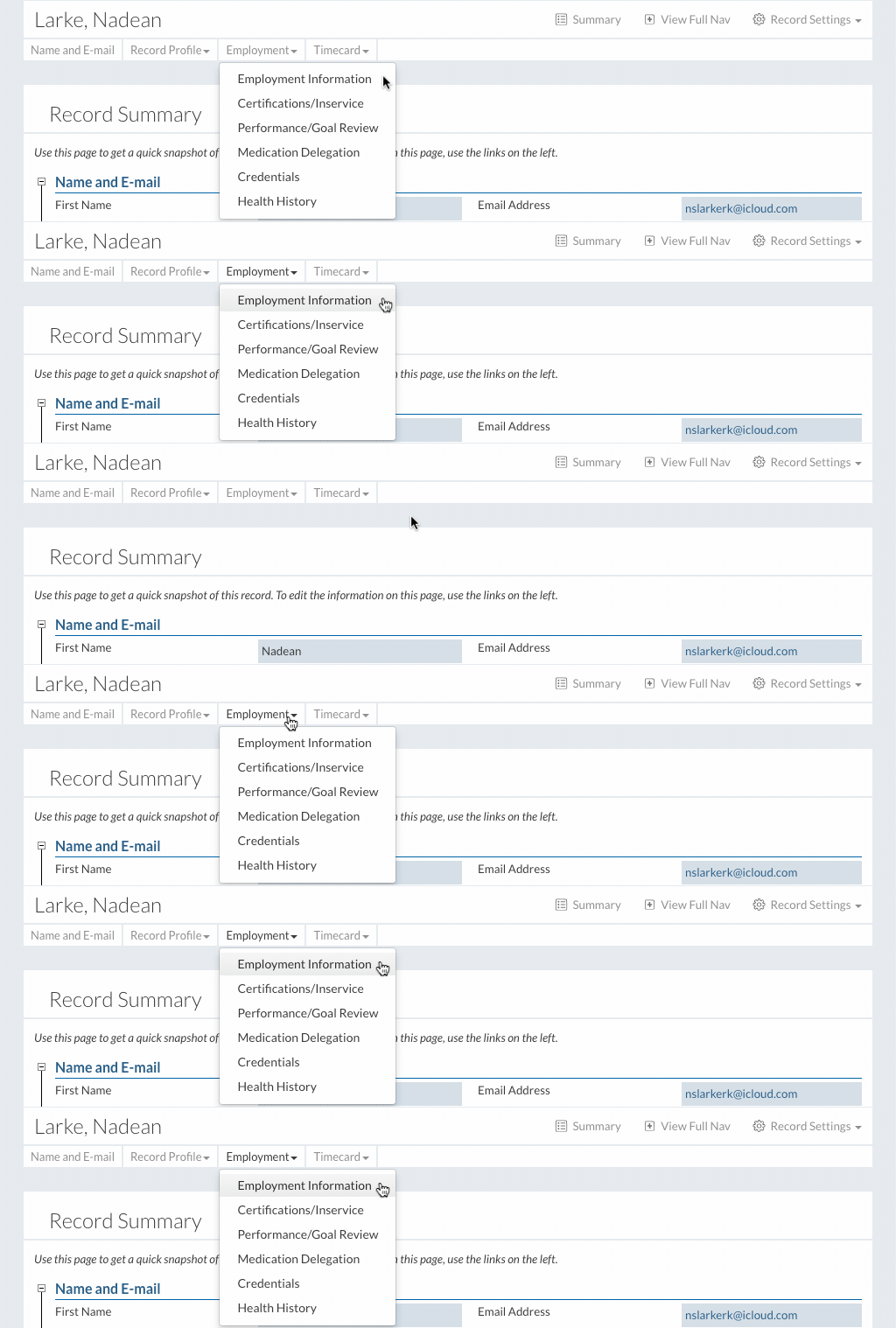
3. Click on “Employment Information” under the “Employment” dropdown.
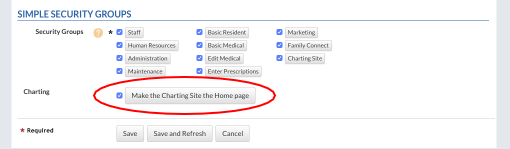
4. At the bottom of the form select the “Make the Charting Site the Home page” button.
5. Click the “Save” button to finish. Once saved, the staff member will be automatically taken to the “Charting” page every time they log in or click on the “CareDash” button. This step is not a requirment but an option. Scheduled MARs Display Settings
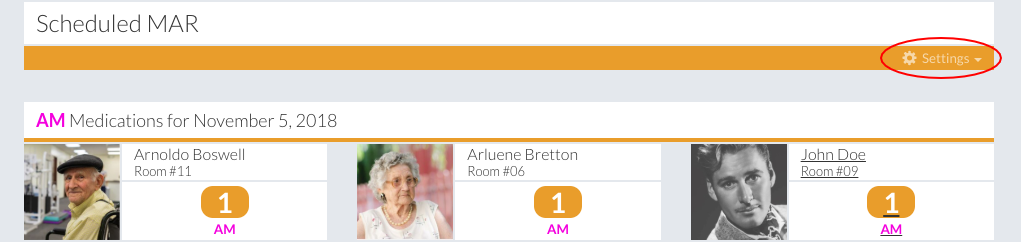
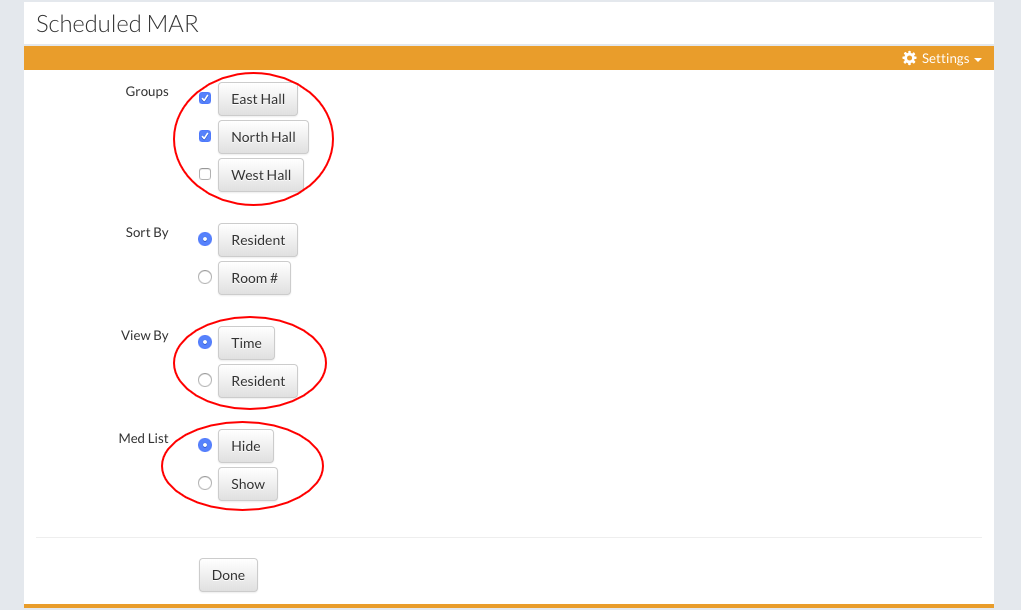
2. Click the “Settings” button.
Choose which Med Groups to chart. Choose to display meds by resident or time. Choose to display the med list or to hide it.
3. Click the “Done” button when finished. Sign Off a MAR
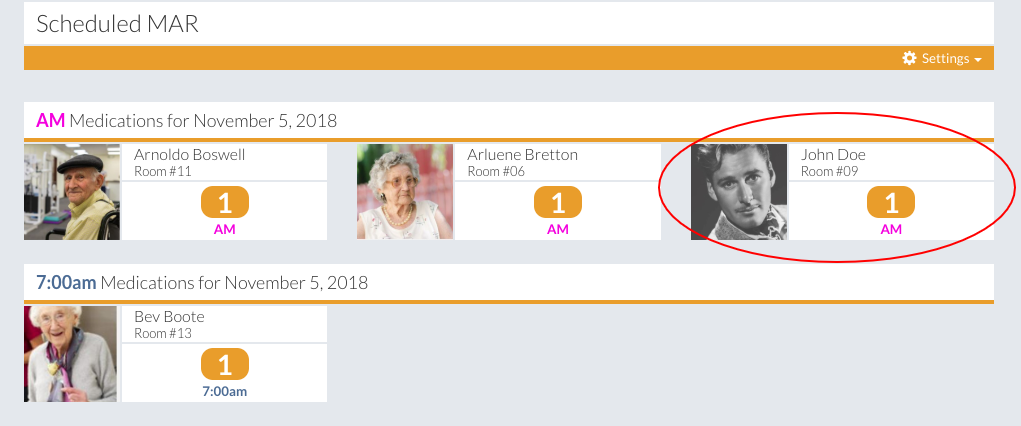
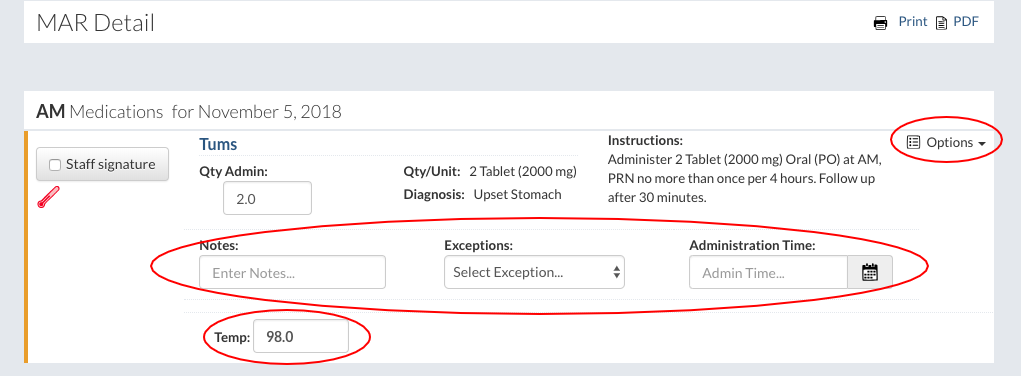
2. Fill out the information as needed. Under the “Options” dropdown there more information fields. Notes can be entered, exceptions can be recorded, and a new administration time can be entered if needed. If any vitals have been added to a medication, the vital field will be required.
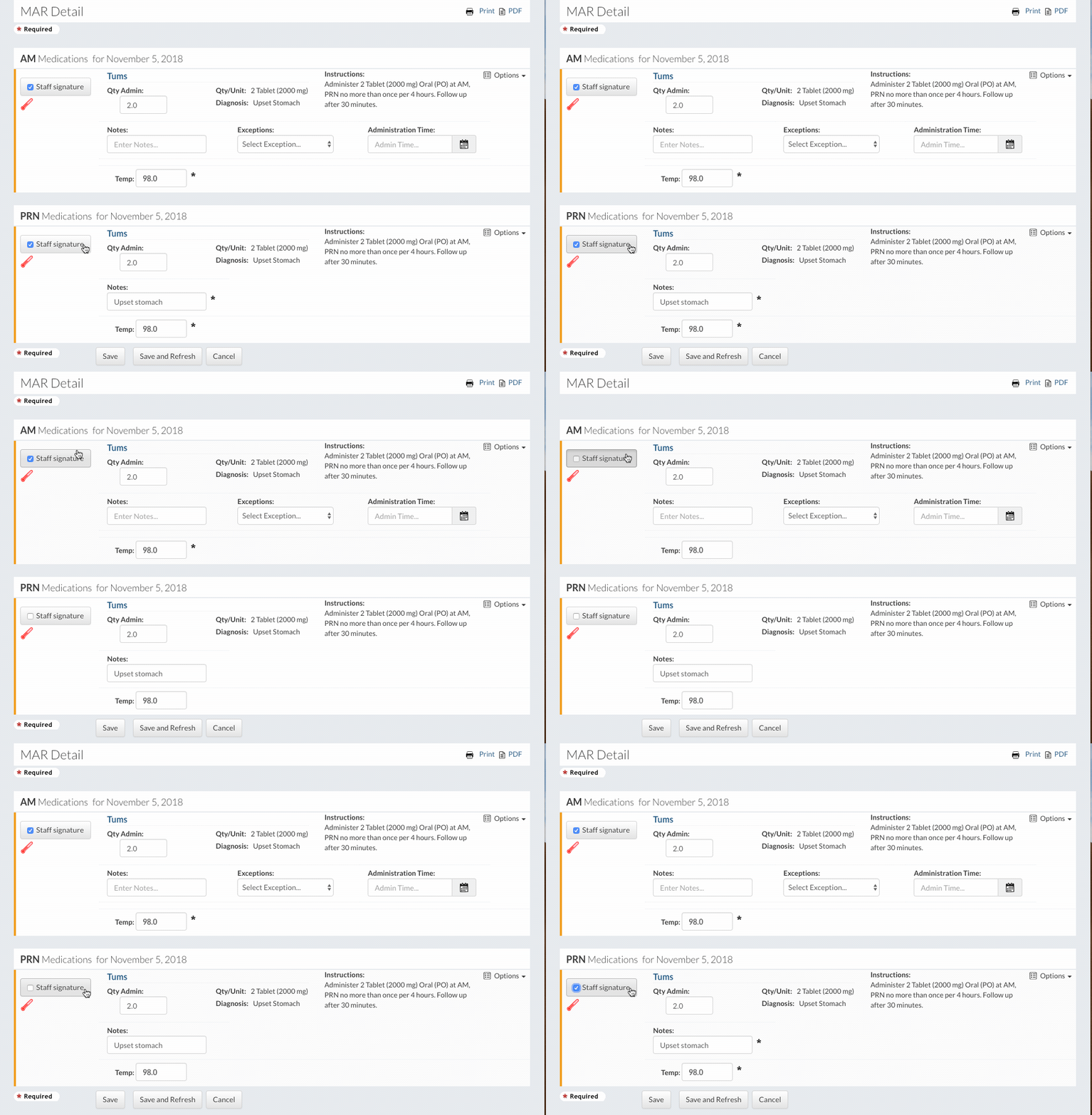
3. Once the medication has been administered, click the "Staff signature" button.
4. Click the “Save” button to finish. Once a MAR has been signed and saved the resident will no longer appear in the list, because the MAR is complete. At the end of the day, if all medications have been signed off, only PRNs should be remaining in the list. The following day at 12:01 AM the medication list will refresh with all the medications that need to be administered that day. |