Please be advised that we will be performing scheduled maintenance on Friday, September 25th, at 10:00 PM MST. During this window, BlueStep will be unavailable for approximately 30 minutes. We appreciate your patience as we continue to upgrade and enhance our services for you.
With QVR you have the ability to count narcotic medications and c-class medications, just like a narcotic book. The off-going shift can count with the on-coming shift, and each staff can get notifications if the medication count is off or has a discrepancy.
Add Providers to a Resident Record
It is important to add the Pharmacy as a Provider to a resident's record before entering and counting medications for that resident
If a new provider needs to be added to the facility, see the "How to Enter Staff and Providers" help topic.
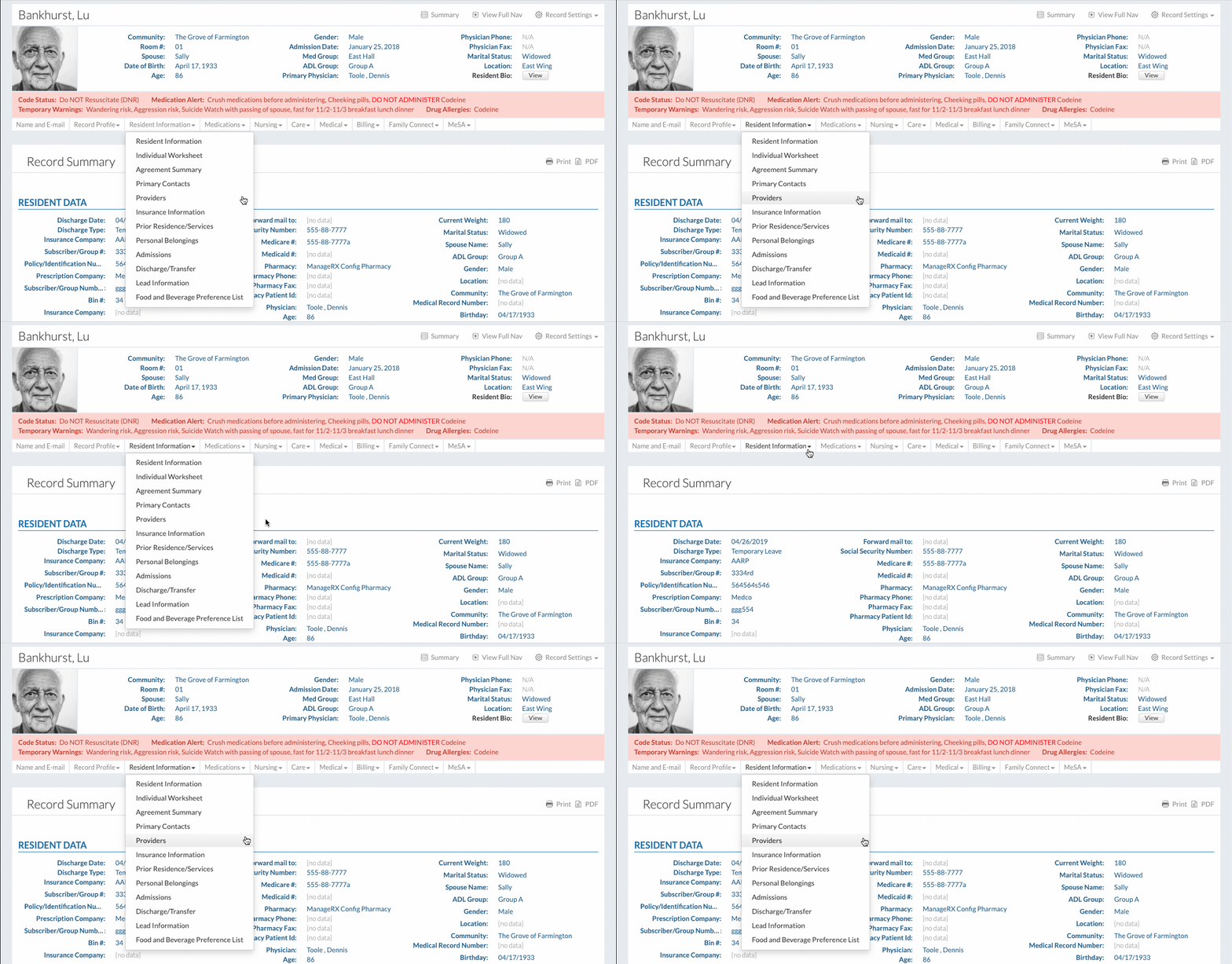
To add a provider to a resident record, click on "Select Resident" under the "Resident" tab.
2. Select a resident
3. Click on "Providers" under the "Resident Information" dropdown.
4. Click on the "New Entry" button.
5. Fill out the form
Select the provider from the dropdown
Select the provider's role(s)
6. Click the "Save" button to finish.
Navigating the Medication Count
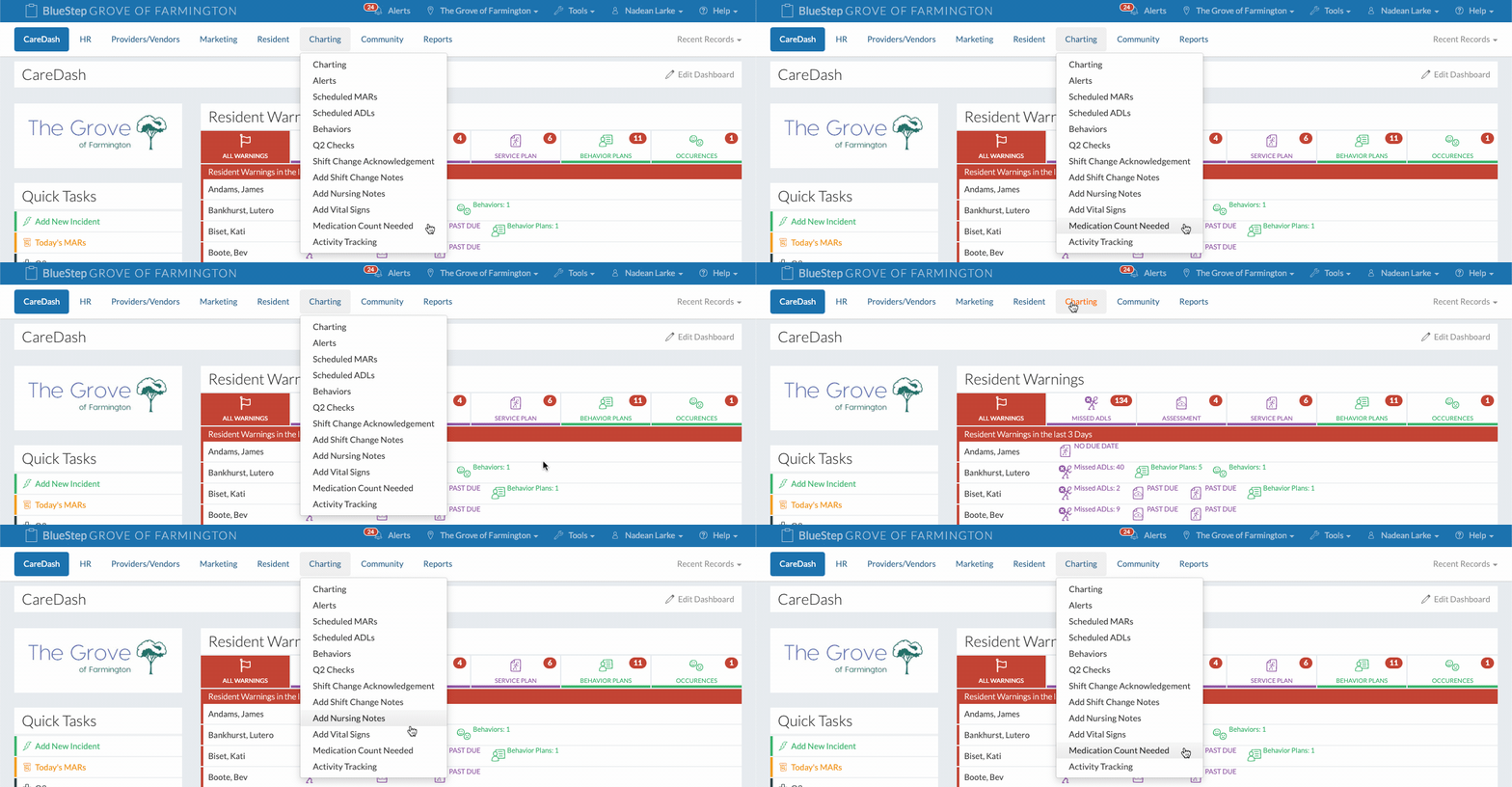
Click on "Medication Count Needed" under the "Charting" tab.
A list of residents and their medications is shown.
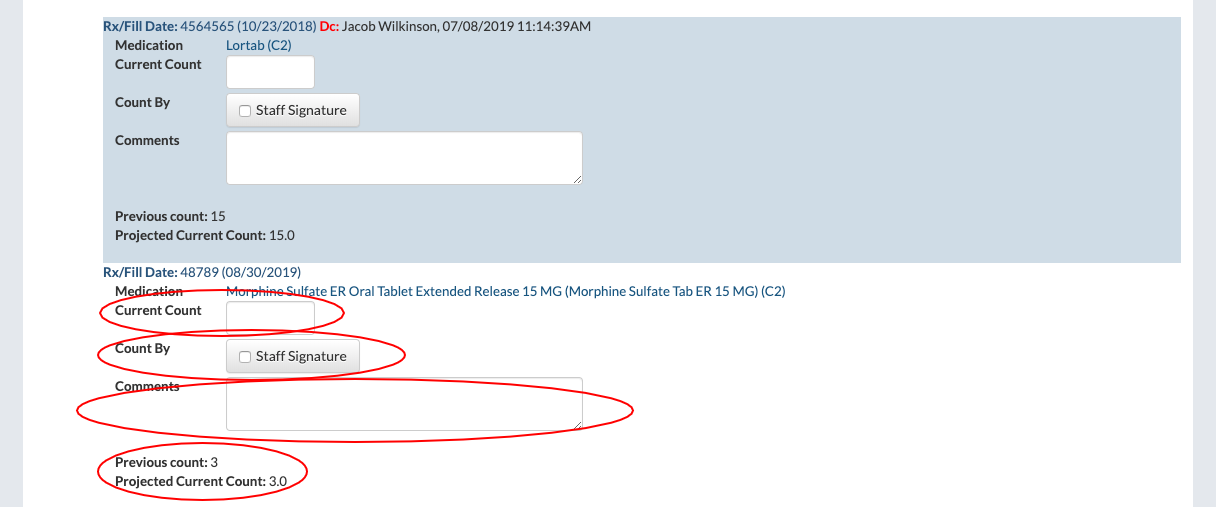
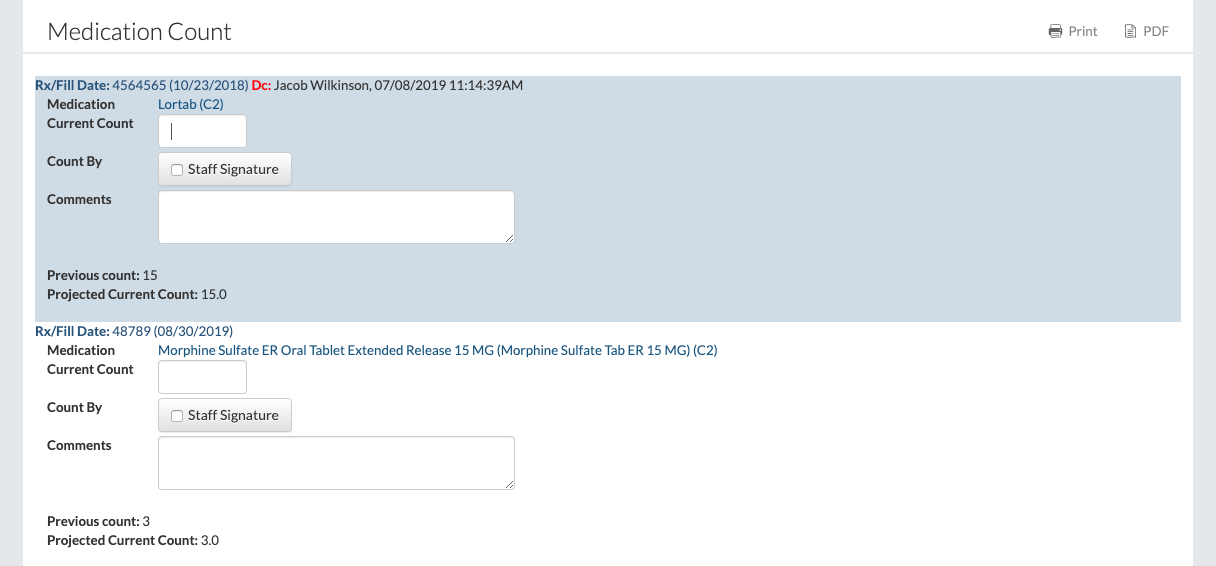
The medication count will be filled out in the "Current Count" field by the off-going staff.
An alert will be pushed to staff members if a medication count doesn't match the intake count. The alerts will be pushed if notifications have been set up in the Community Record.
Comments can be made if needed.
Previous count and projected current count information are provided, along with a record of all other counts.
When the medication count is ready to be signed off, the staff member will click on the "Staff Signature" button and click the "Save" button to finish.
If the staff member needs to sign off on all of the medication counts, they can click on the "Sign All Counts" button
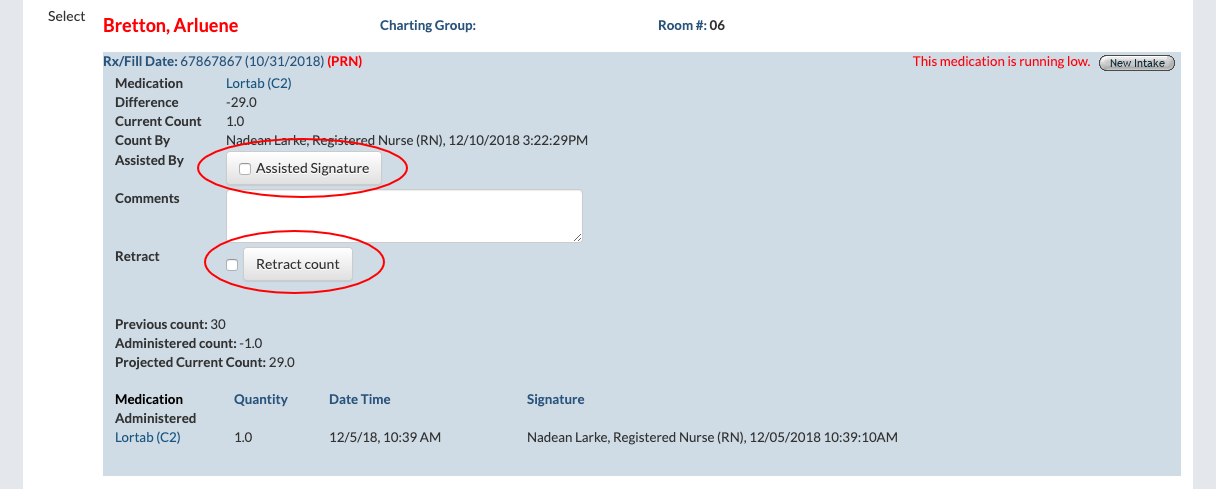
The on-coming staff member will see an "Assisted Signature" button. This is used so that the on-coming staff can confirm that the medication count filled out by the off-going staff is correct.
If there is an issue or problem in the medication count, the on-coming staff member can click on the "Retract Count" button to make the necessary edits and adjustments.
If the staff member need to sign off all of the assisted signatures, they can click on the "Sign All Assists" button.
Activate the Medication Count on the Community Record
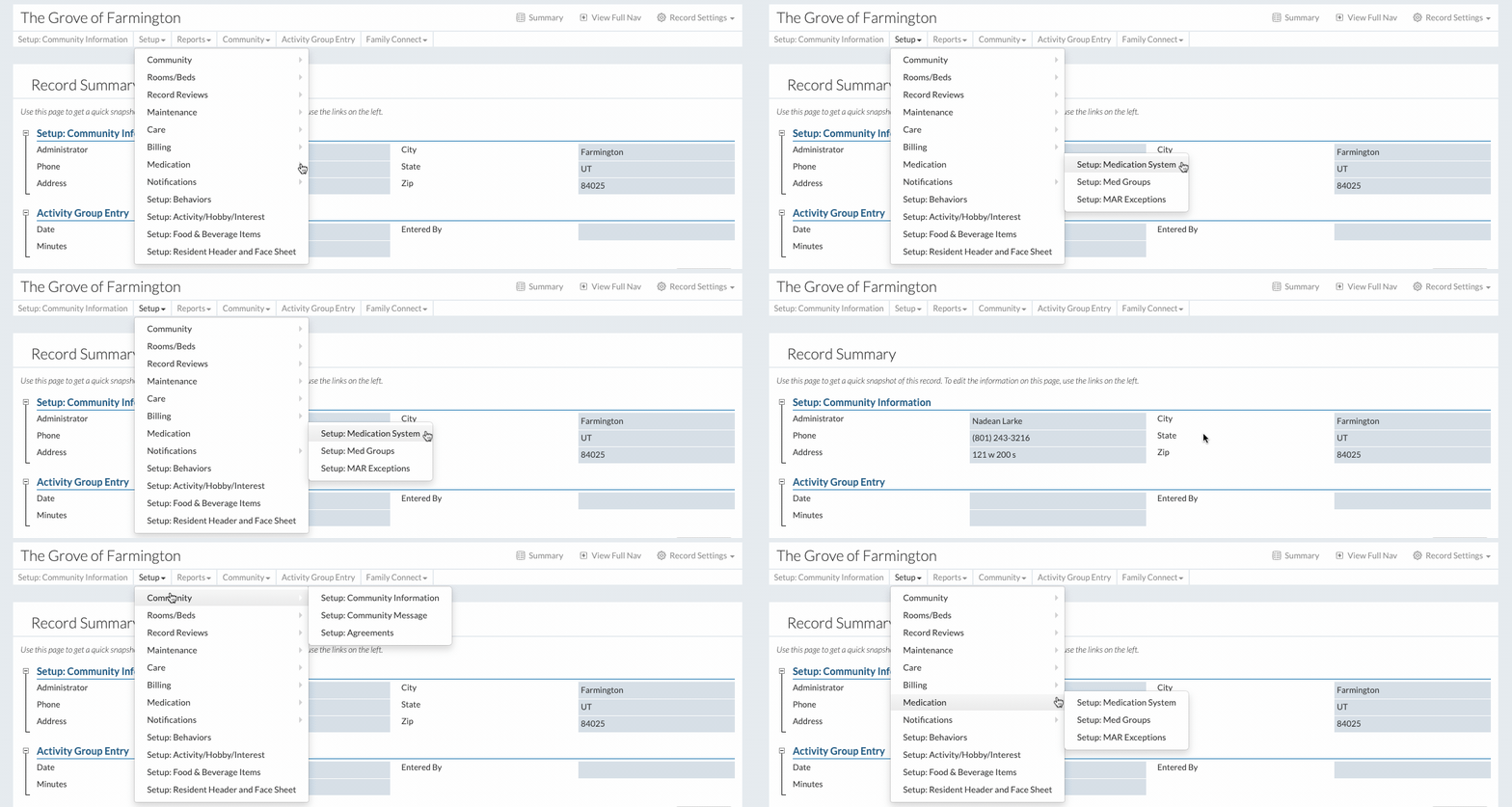
Click on "Community Record" under the "Community" tab.
2. Click on "Setup: Medication System" under "Medication" under the "Setup" dropdown.
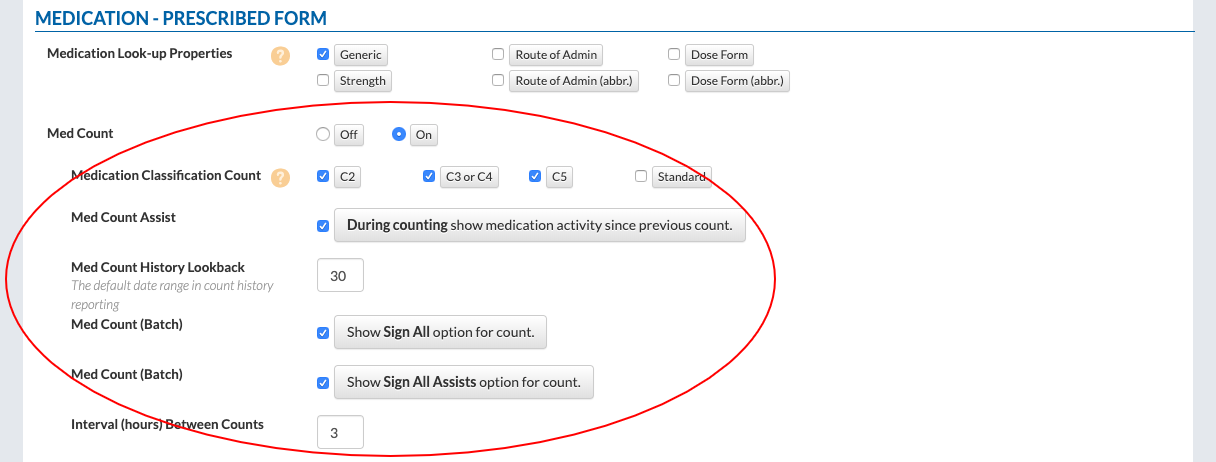
3. Scroll down to "Med Count" in the "Medication - Prescribed Form" section
Click the "On" button to activate the medication count.
Select the medication classification count.
Select whether or not to display the medication activity since the previous count.
Choose how many days the medication history displays. The default is 30 days.
Select the "Show Sign All option for count" button for staff members to be able to sign off on all of the medication counts at once.
Select the "Show Sign All Assists option for count" button for staff members to be able to sign off on all assists for the medication counts at once.
Choose the interval between counts. The recommended amount for eight-hour shifts is three hours.
4. Click the "Save" button to finish.
Enter a Medication Intake for a Resident
Click on "Select Resident" under the "Resident" tab.
2. Select a resident.
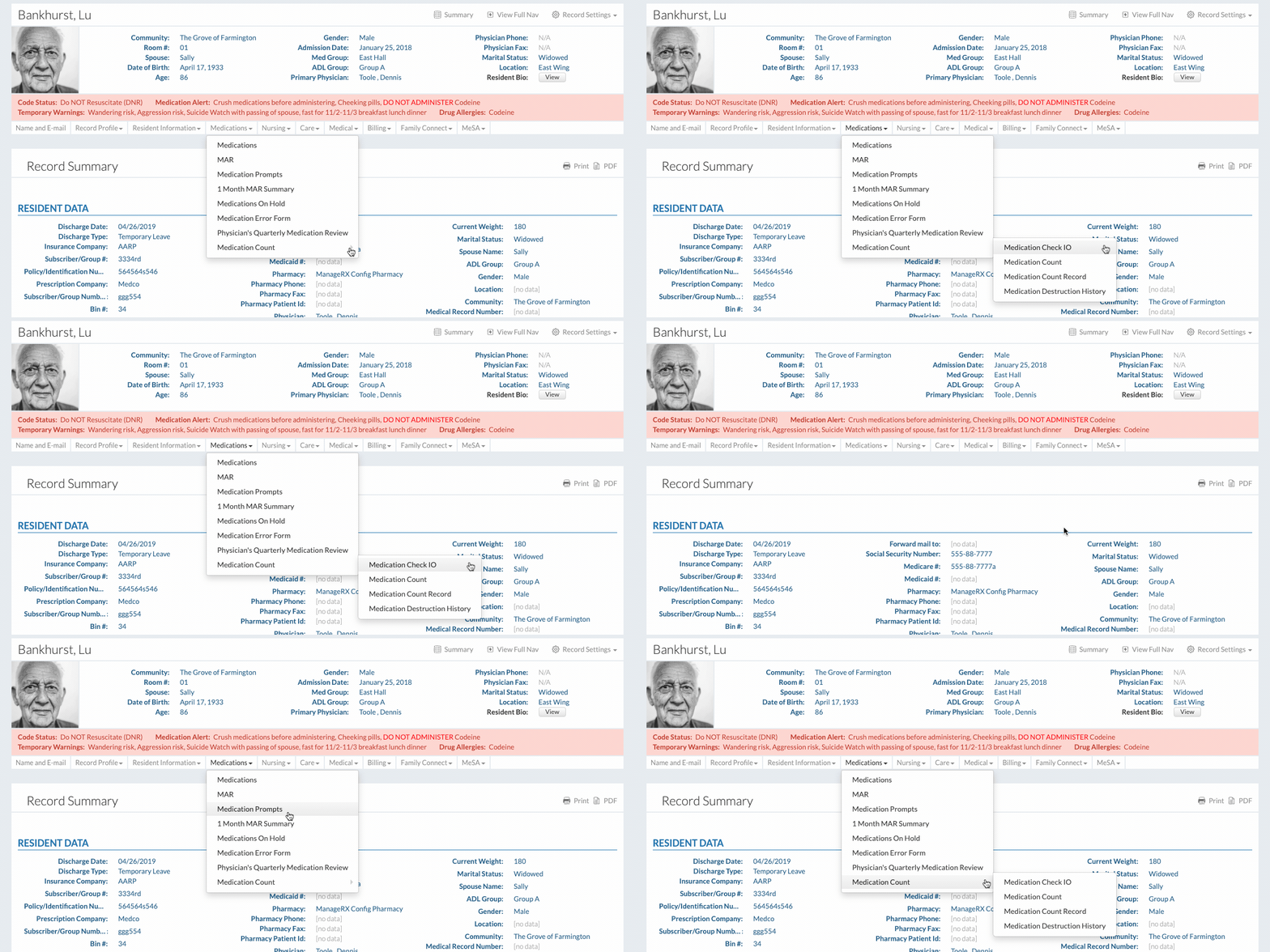
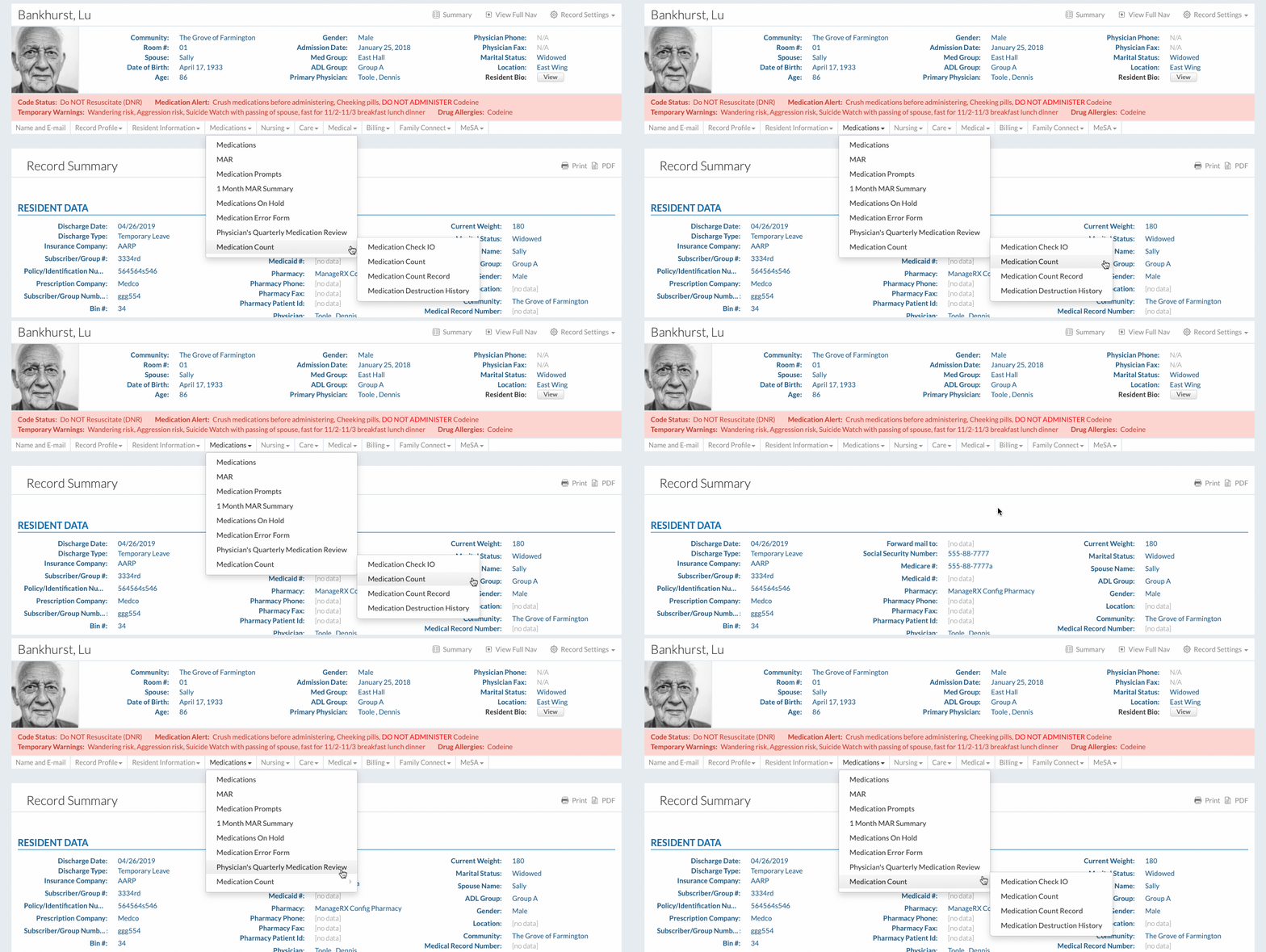
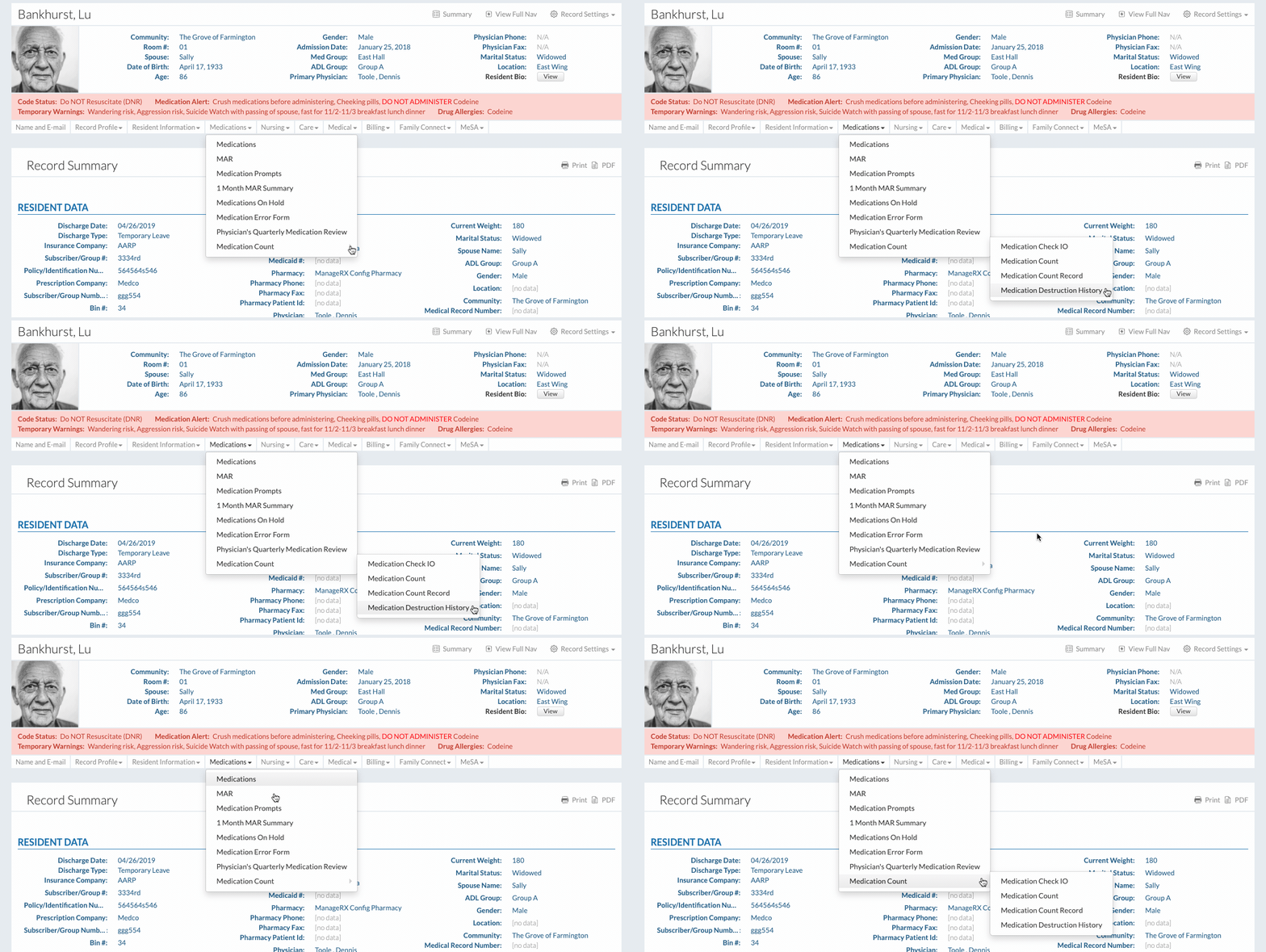
3.Click on "Medication Check IO" under "Medication Count" under the "Medications" dropdown.
4. Click on the "New Entry" button for the "Medication Intake" section.
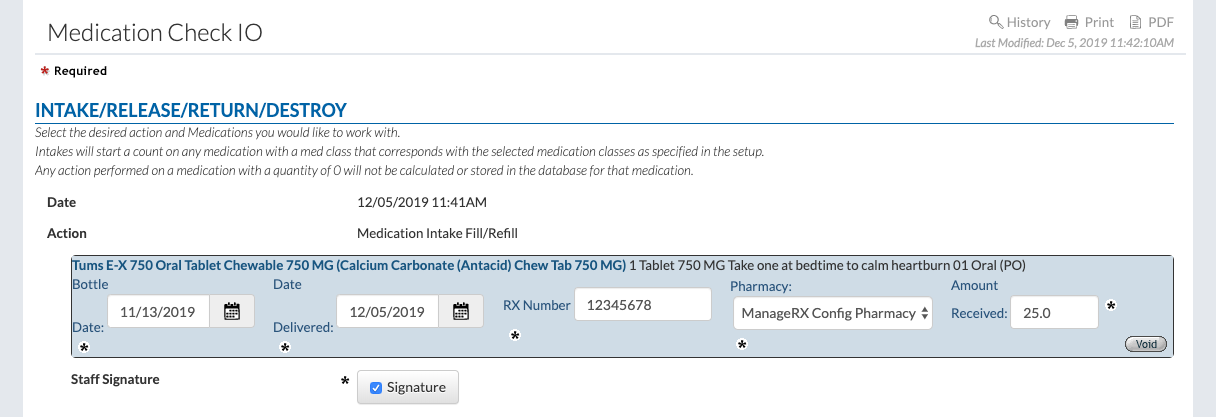
5. Fill out the form
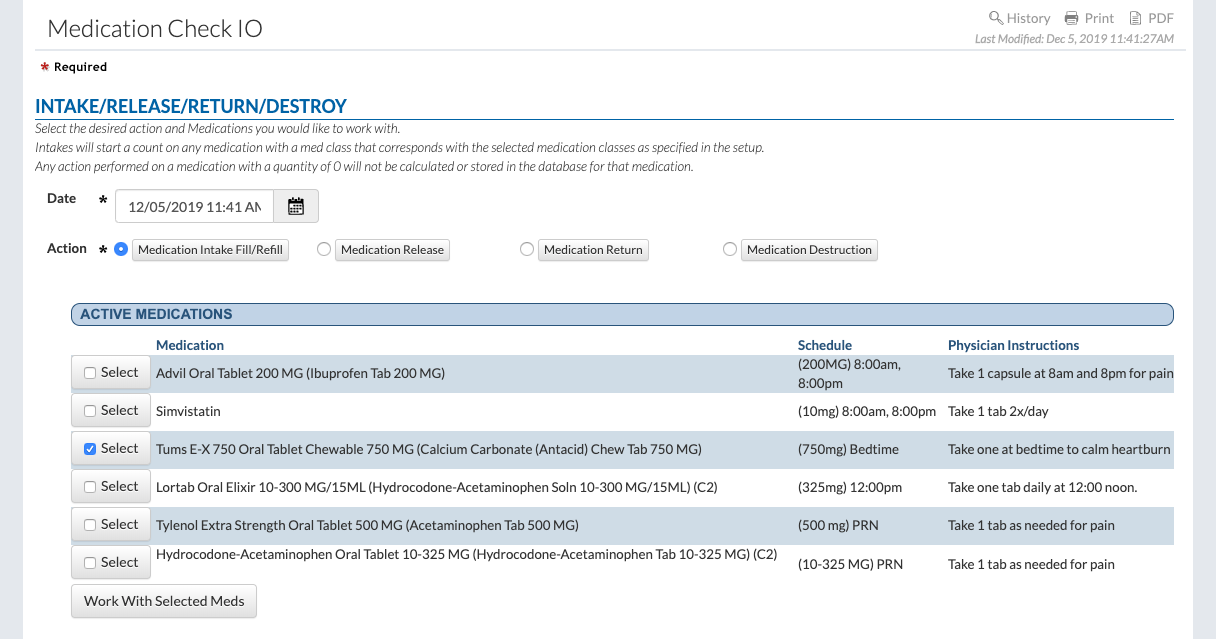
1. Select the "Medication Intake/Fill Request" button.
2. Click the "Select" button for each medication that needs to be counted.
3. Click on the "Work with Selected Meds" button.
4. Enter the bottle date and date delivered for the medication.
5. Enter the Rx number for the mediation.
6. Select the pharmacy from the "Pharmacy" dropdown.
7. Enter the amount of the medication received.
8. Click on the signature button.
6. Click the "Save" button to finish.
Navigate the Other Medication Count Features
Medication Count
Click on "Medication Count" under "Medication Count" under the "Medications" dropdown.
The resident's medication counts are displayed here.
Various information is displayed to help the staff member understand the count.
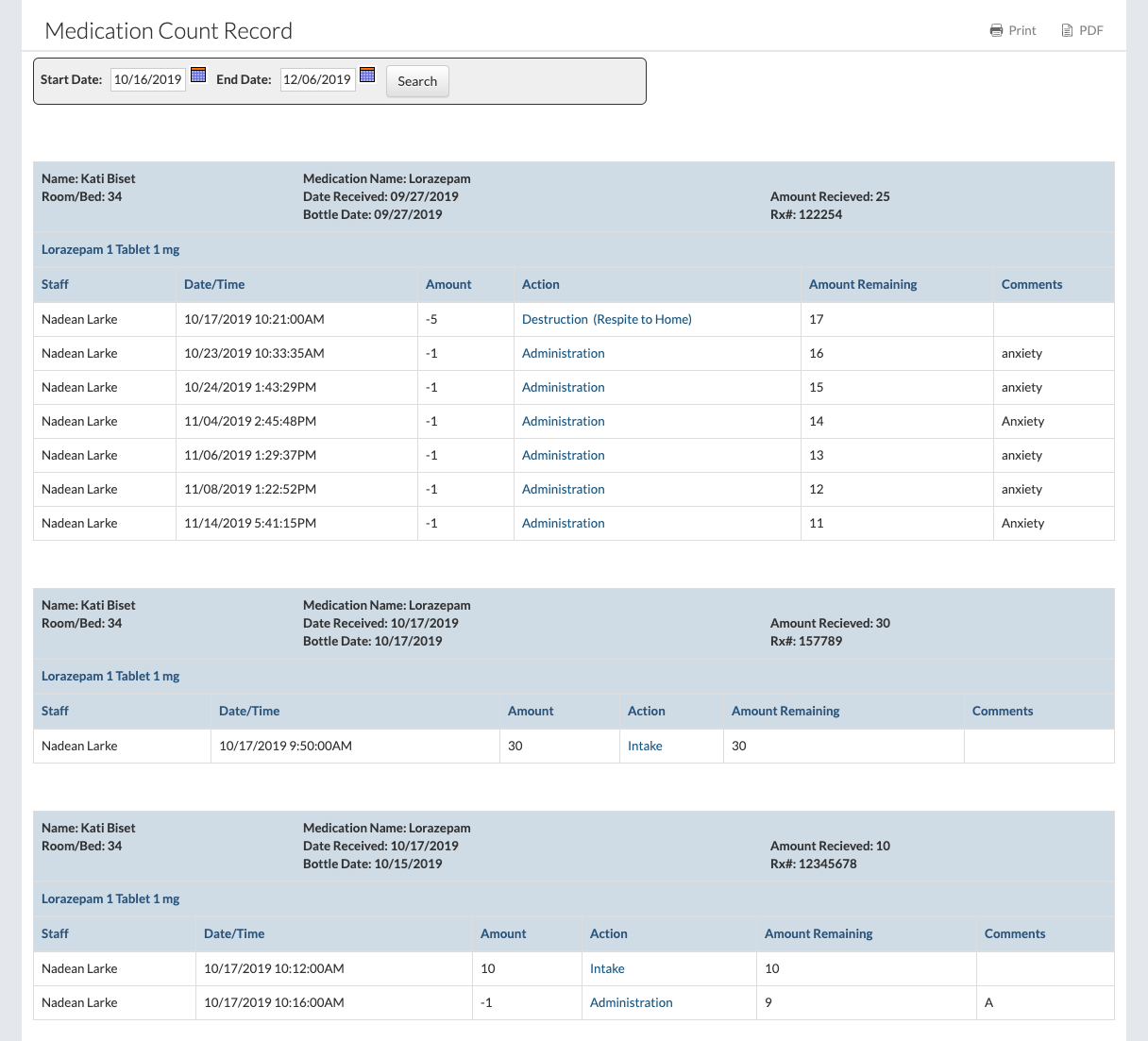
Medication Count Record
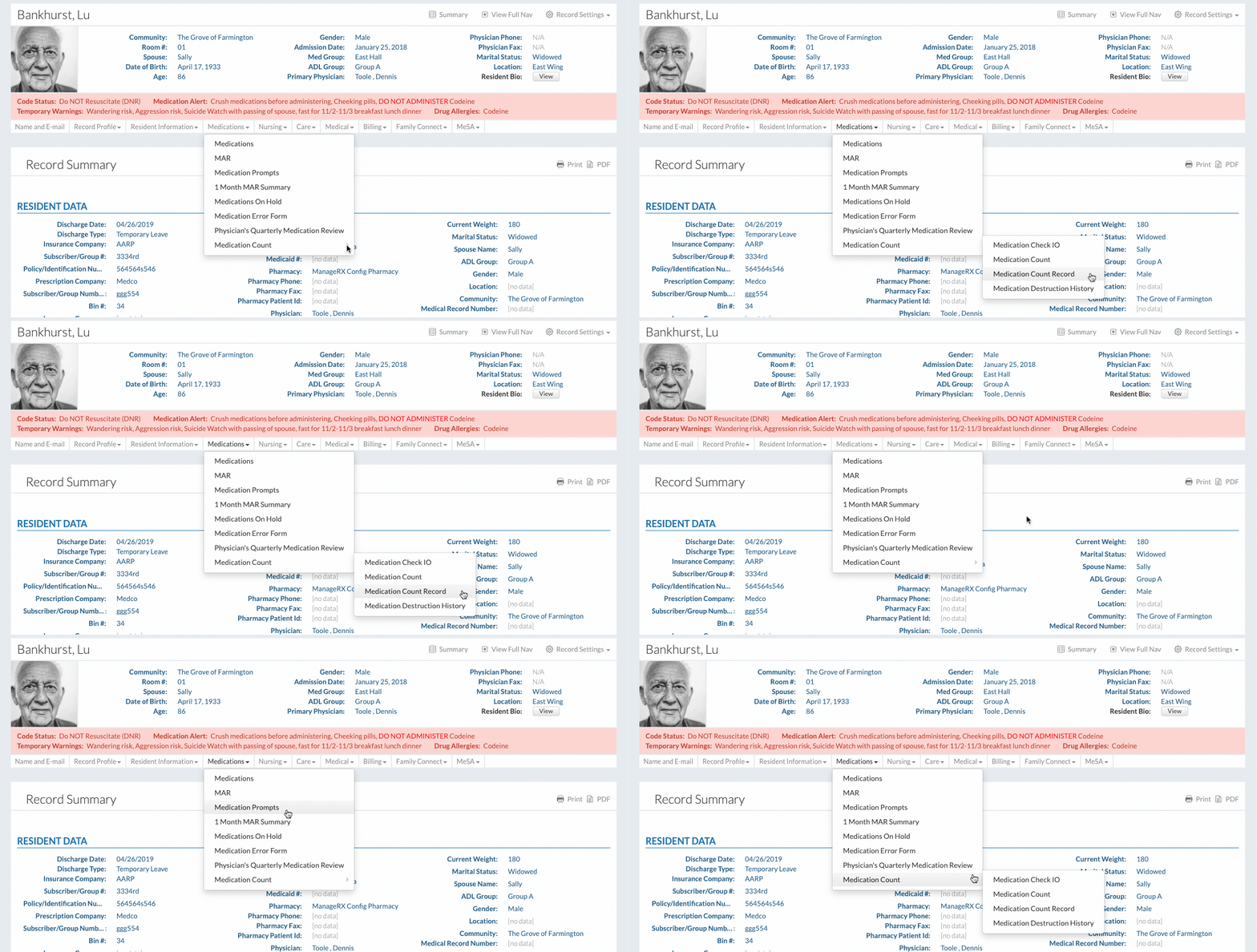
Click on "Medication Count Record" under "Medication Count" under the "Medications" dropdown
The resident's medication count record is displayed here.
It will show which staff members signed off on which medications and give a timestamp for each count.
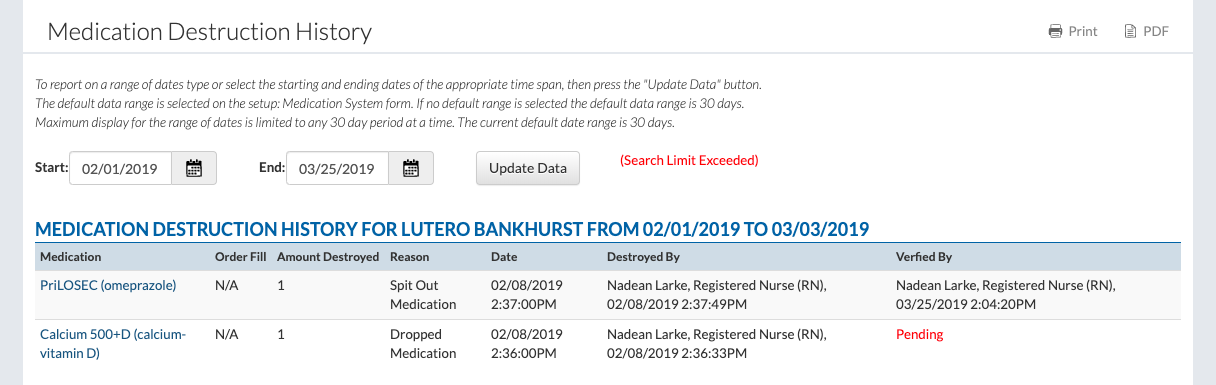
Medication Destruction History
Click on "Medication Destruction History" under "Medication Count" under the "Medications" dropdown
Any information about medication destruction is shown here.
If a medication is destructed, the medication count needs to be zeroed out.
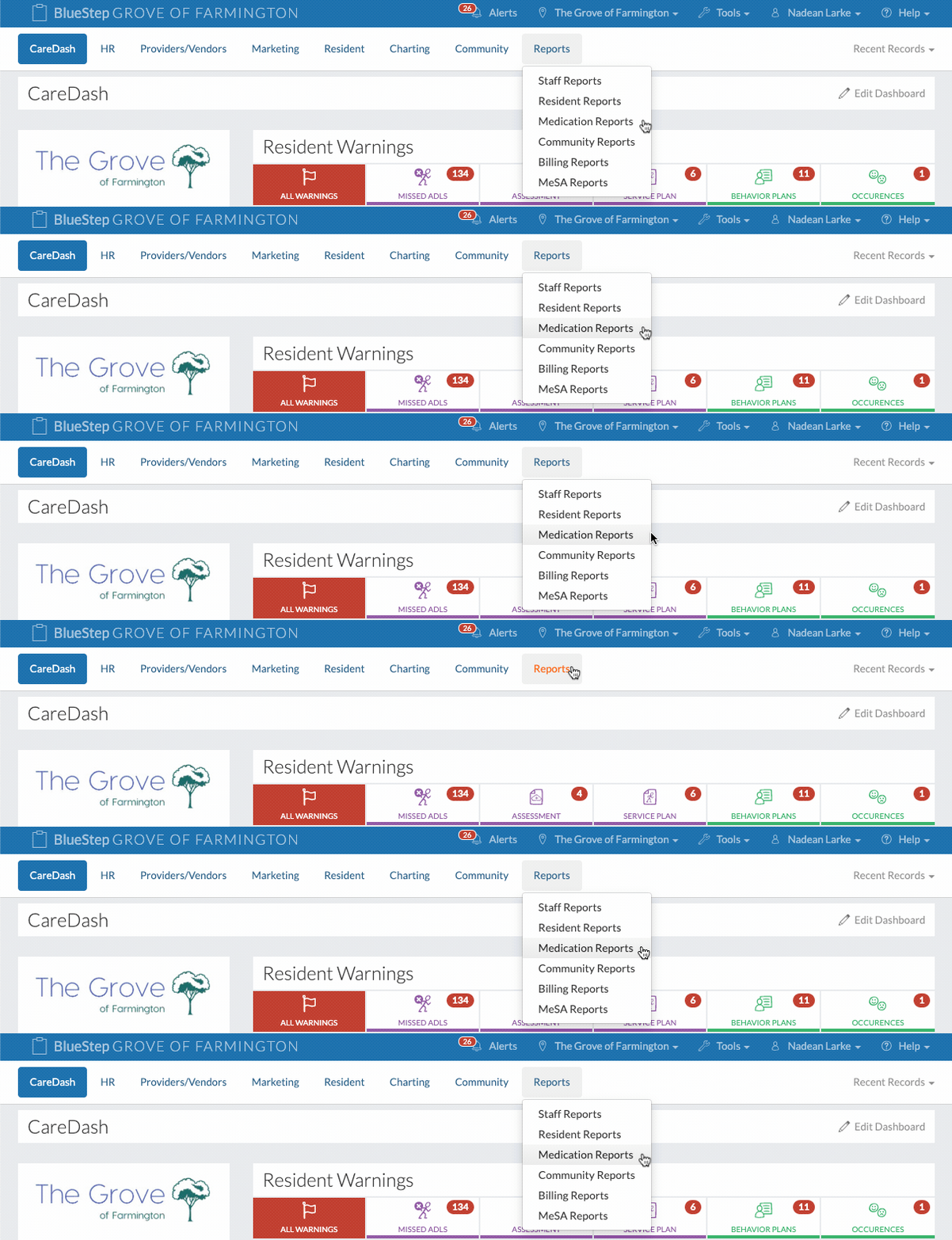
View the Medication Count Record at the Community Level
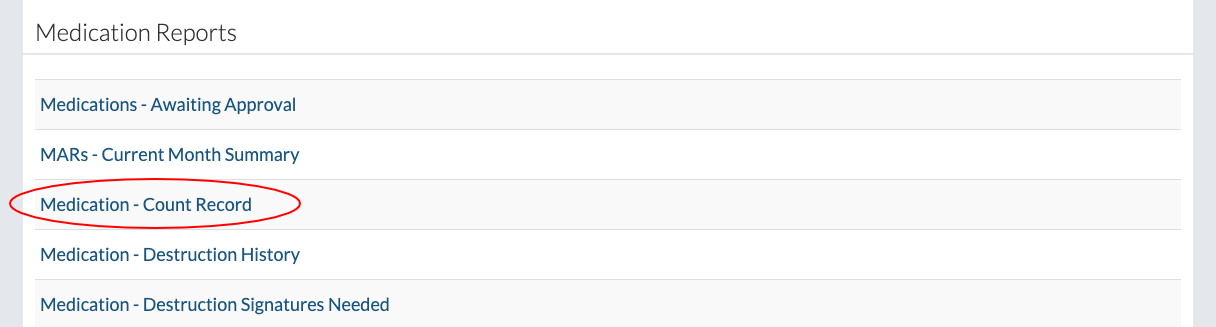
Click on "Medication Reports" under the "Reports" tab.
2. Click on the "Medication - Count Record" link.
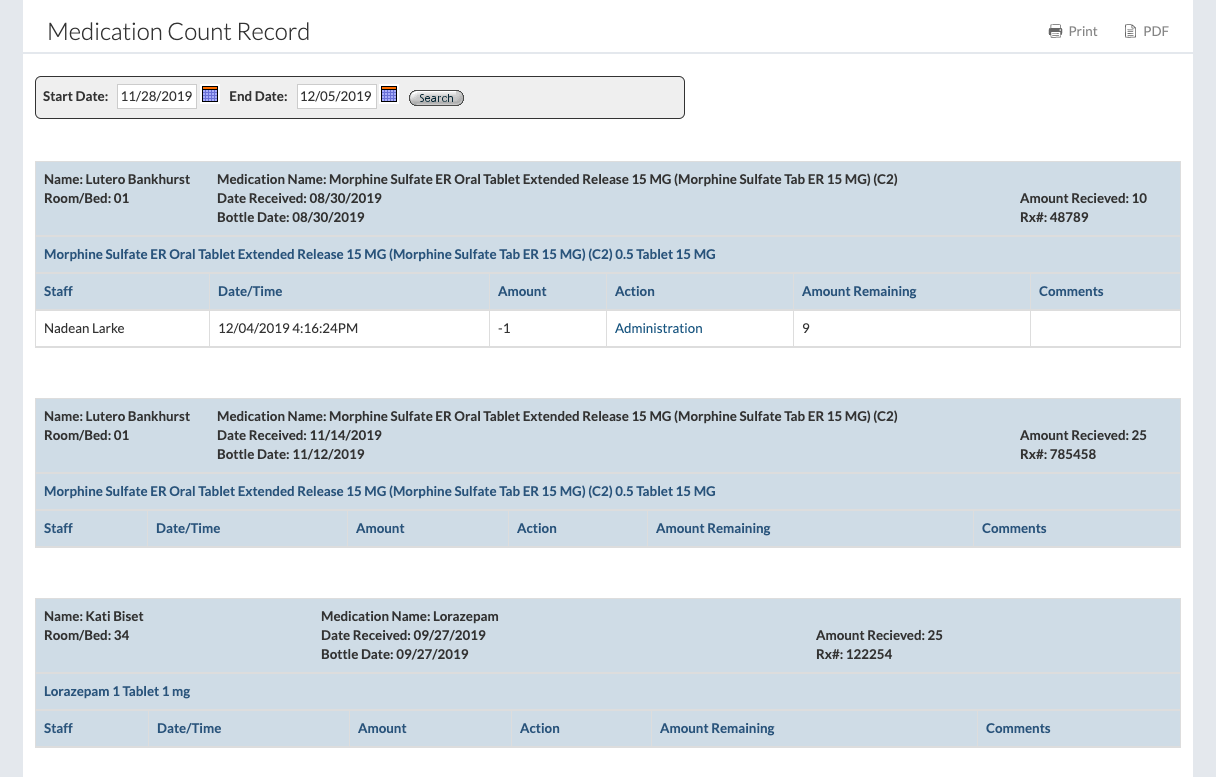
3. The medication count record for each resident in the community will be displayed.